Find and inspect a player
The Players page gives you a searchable table of every player seen across your servers. From there you can open a player’s page to review sessions, notes, access-list and tag memberships, bans, alts, and stats.
Find a player
Section titled “Find a player”- Players shows columns: Actions, Name, Tags, one column per identity your game
reports (for Squad that’s EOS ID and Steam ID), and Last activity. Filters:
- Type in Name to filter by name.
- Type in an identity field (e.g. EOS ID) to filter by that ID — the filter searches the platform of the column where you typed the value, so an EOS ID typed under Steam ID does not find the player.
- Pick a label in Tags to narrow to players carrying it (shown to a role that can read the tag catalog).
- The Heliana account column shows the account that claimed the player’s ID and its status: Verified via Steam, Verified or Unverified; it is empty when no account claimed the ID. Pick Any, None, Unverified or Verified under Heliana account to narrow by it. Verified includes players verified via Steam; Unverified is the queue of claims nobody has verified yet (see below).
- Filter by Last activity to narrow by when the player was last seen.
- Load more fetches the next 50 rows; it disappears when the list ends.
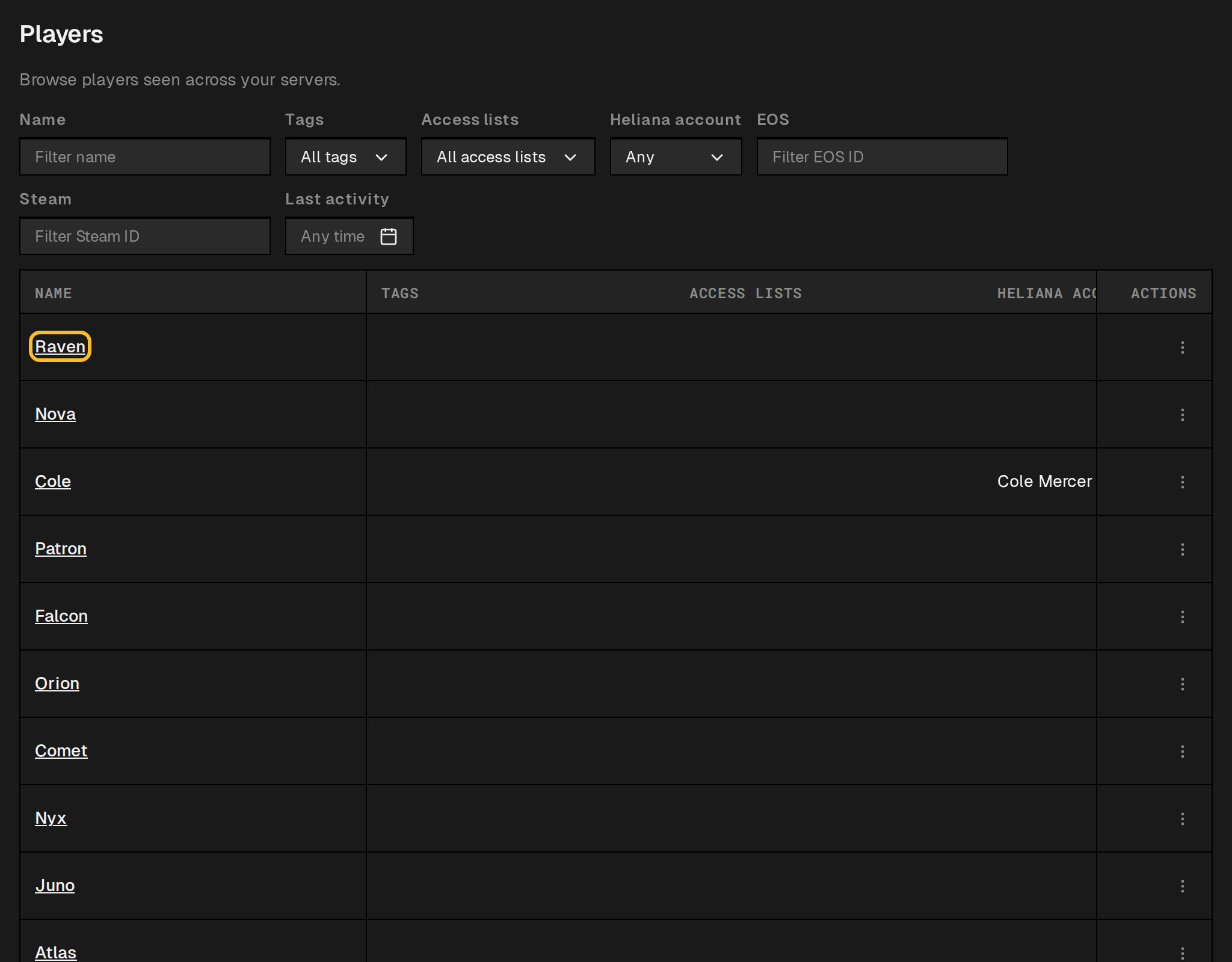
Open the player page
Section titled “Open the player page”- Click the player’s Name in the table. You land on the player’s own page, with their name and identity IDs at the top and a ← Players link back to the table. The selected tab travels in the address, so a link to it opens straight on that tab. Going back returns to the table with the same name, identity and tag filters you left it with; the Last activity range resets. The Actions column stays on a small ⋮ menu of manual automations you can run against that player, so you don’t have to open their page first to ban or warn someone.
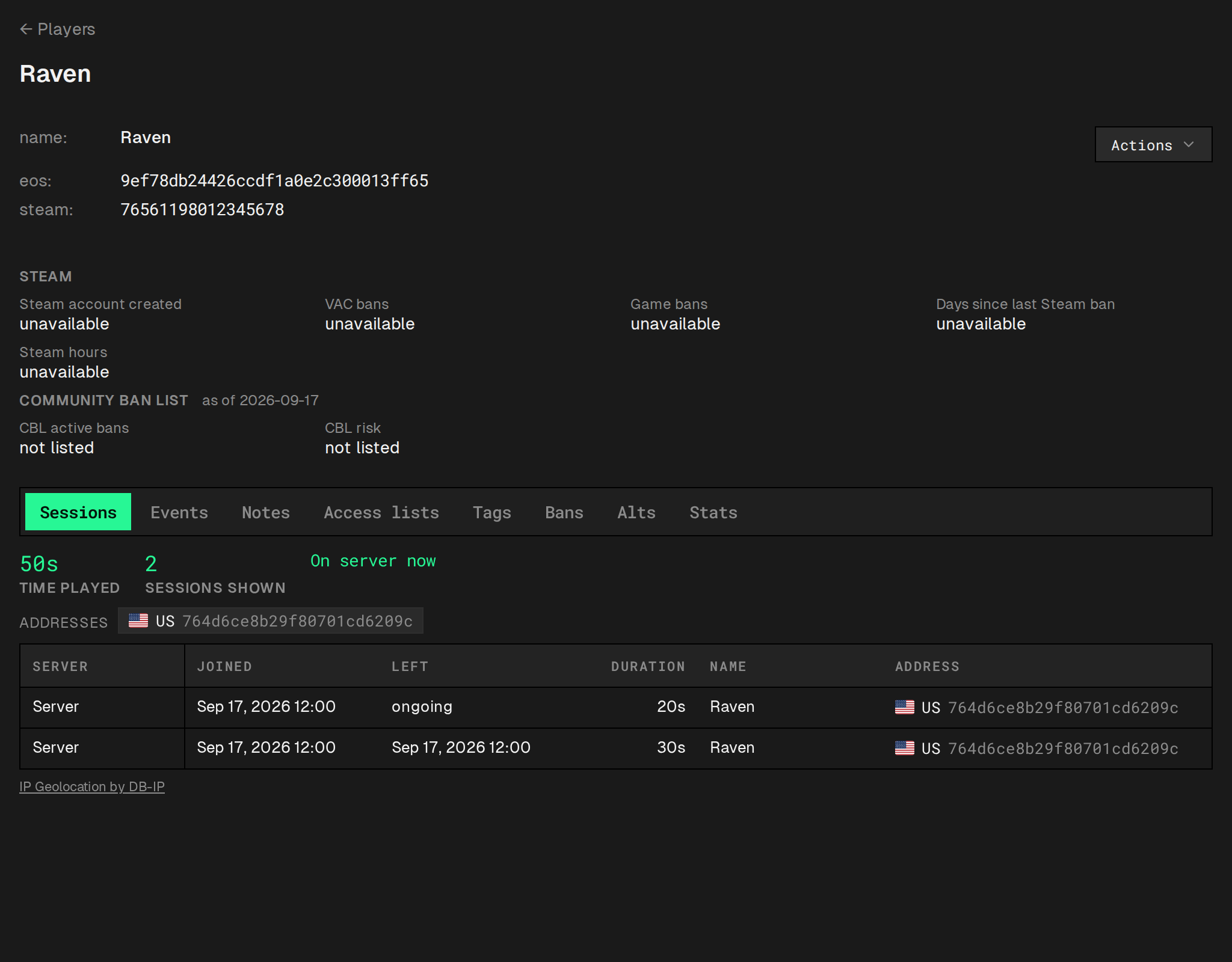
Tabs on the player page
Section titled “Tabs on the player page”Access lists, tags and bans are three separate tabs.
| Tab | What it shows |
|---|---|
| Sessions | The player’s last 50 sessions, with the names they used and, for a role that can read player addresses, where each one connected from — a country flag and network provider behind a masked token, never the raw IP. Only shown to a role that can read events. |
| Events | A live feed of this player’s game events, filterable by category and date range. Only shown to a role that can read events. |
| Notes | Free-text notes admins have added about this player. |
| Access lists | The access lists this player belongs to, with the expiry (date and time, UTC) of each membership; an entry from a source shows Managed by Patreon, or Managed by Heliana for one earned by seeding, and can’t be removed here. Add to access list adds one. |
| Tags | The tags on this player. Add tag offers every tag they don’t carry yet — see Tag & watch players. |
| Bans | Every ban on record for this player, your own and imported alike, each with its status and any exclusion suppressing it (Remove exclusion lifts it). Below them, Other communities lists bans from elsewhere, read-only. Ban player adds one. |
| Alts | Other players who shared an address with this one, seen on your own servers — each with a ban badge if they have one, and the matching address behind a masked token, country and provider. Shown to a role that can read player addresses. |
| Stats | Combat stats for this player. Only shown for games that keep a scoreboard. |
If the player has been seen under more than one name, the other names are listed in a hover hint on the name (“Also seen as: …”).
Above the tabs, an Actions button lists the manual automations you’re allowed to run against this player — that’s where Ban player and the other seeded player actions live. It only appears when there is at least one such automation: a manual automation is listed for a role that holds Automations → Update, or that is linked to that one automation. See Grant access to a player action.
Verify a player’s game ID
Section titled “Verify a player’s game ID”When a Heliana account claims a player’s game ID in its profile, the player page shows a Heliana account row with the account name and Verified or Unverified. A claim counts for nothing until it is confirmed. A Steam ID connected with Connect Steam is already confirmed and shows Verified via Steam, with no Verify or Unverify. For an EOS ID, an admin clicks Verify to confirm it, or Unverify to take the confirmation back. Both need the player:link key (Owner and Admin hold it). A verification applies only inside your organization, and it is reset when the account changes its game ID.
Revoke a ban from the player page
Section titled “Revoke a ban from the player page”- On the Bans tab, find the ban, shown with an Active, Expired, Revoked or Removed from source badge.
- Click Revoke and confirm. The status changes to Revoked.
Revoke appears only on bans your own organization issued. An imported one offers Exclude instead — see Manage exceptions. An excluded imported ban offers Remove exclusion.