Create your first automation
Automations let heliana react to game events automatically — warn a player, run an RCON command, post to a Discord webhook — without anyone having to watch the live feed. You configure the event and conditions once; heliana fires the action every time they are met.
Open the Automations page
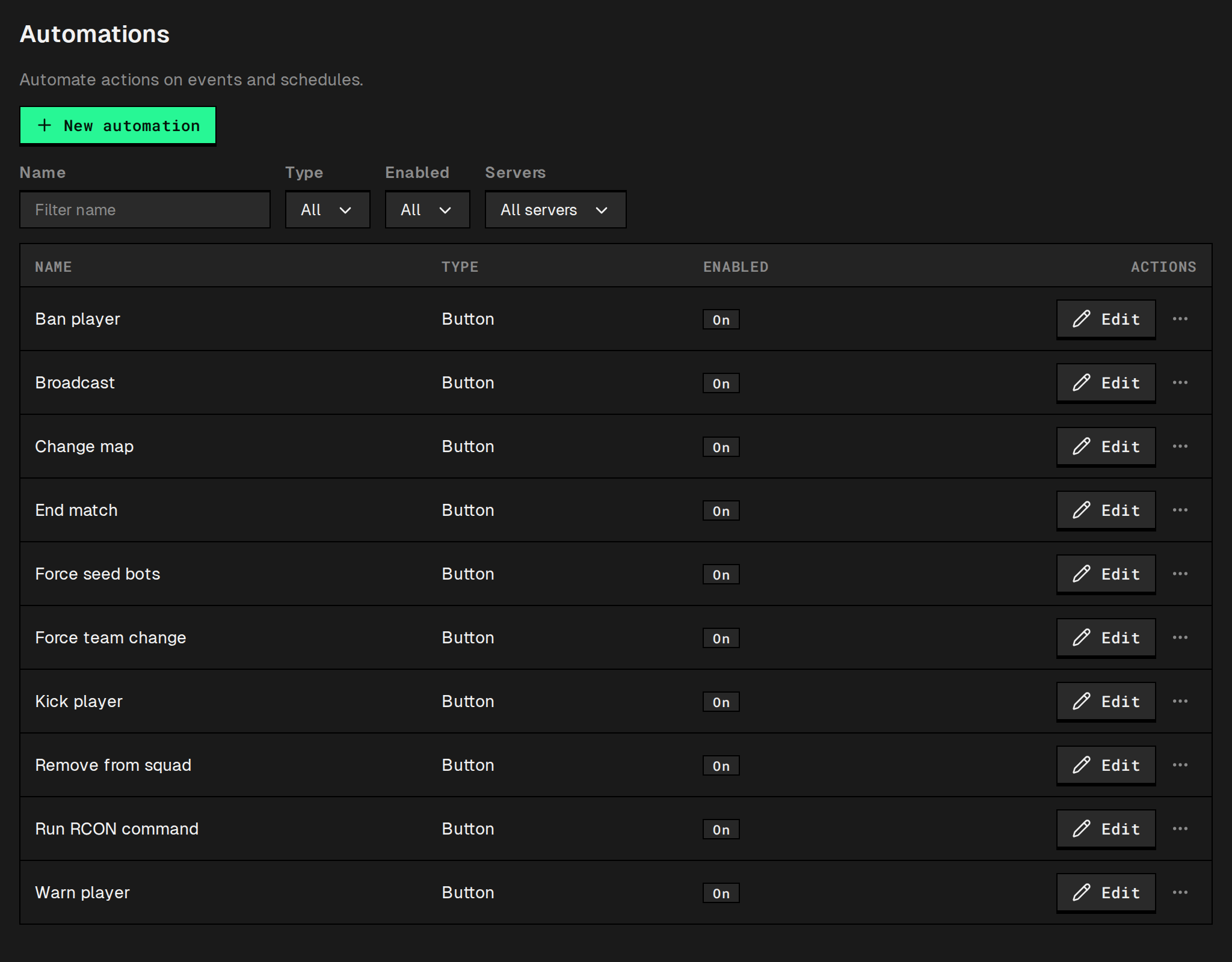
Section titled “Open the Automations page”Click Automations in the sidebar. Automations belong to your organization, not to one server — this table lists every automation in the organization, with columns for Name, Type (Button, Event or Schedule) and Enabled. Each row has Edit, and its menu holds History and Delete. Each automation can be scoped to specific servers or left open to all of them; Servers above the table filters the list by server.
A new Squad organization starts with ten button automations in this table, all switched on: Ban player, Warn player, Kick player, Force team change, Remove from squad, Force seed bots, Run RCON command, Broadcast, Change map and End match. There are no event or scheduled automations yet, and no catalog of templates: you write them as modules, or paste one from the examples.
Write your first module
Section titled “Write your first module”An automation is a short TypeScript module: a header that says when it starts, and run(ctx) that does the work. A good first one for any Squad server reacts to teamkills.
- Click New automation. The editor opens on its own screen with an empty module; the header
triggerdecides the type. - Set the header
name, andtrigger: { kind: 'event', event: 'teamkill' }so the module starts every time heliana detects a teamkill in the Squad log. - Declare a counter that tracks teamkills per attacker over a one-hour rolling window, and write the action: warn the attacker below 7 in that window, ban once the counter reaches 7.
import { defineAutomation } from '@heliana/automation'
export default defineAutomation({  counters: { tk: { event: 'teamkill', per: 'actor', window: '1h' } },  game: 'squad',  name: 'Teamkill warn and ban',  async run(ctx) {    if (ctx.counter.tk >= 7) {      await ctx.ban({ for: '1h', reason: 'Teamkilling', servers: 'all' })      return    }
await ctx.rcon(`AdminWarn "${ctx.player.name}" Stop teamkilling (${ctx.counter.tk}).`) }, trigger: { event: 'teamkill', kind: 'event' },})- Press Test run and check Would call and Output. A test run calls nothing on the server and carries no event (
ctx.eventis empty). Test player takes a player ID, and with more than one server you pick the Test server. - Click Save. A new automation is Enabled, so it begins firing on the next qualifying event; switch it to Disabled first to save it off. Under the editor, Servers picks where it runs; a new automation starts on all servers.
Adjust the configuration
Section titled “Adjust the configuration”Click Edit on any automation row to reopen the editor. From there you can:
- Change the count the ban compares against (for example, ban at 5 teamkills on a stricter server).
- Add or remove actions (for example, add a
ctx.fetchDiscord notification alongside the ban). - Toggle Enabled off to disable the automation without deleting it.
The editor also has Download, Copy and Import to move a module in and out as a file, and an SDK reference panel.
For a complete explanation of how event automations work, see Create an event automation.
Next: Next steps