Sign up & create your organization
Sign in with Discord
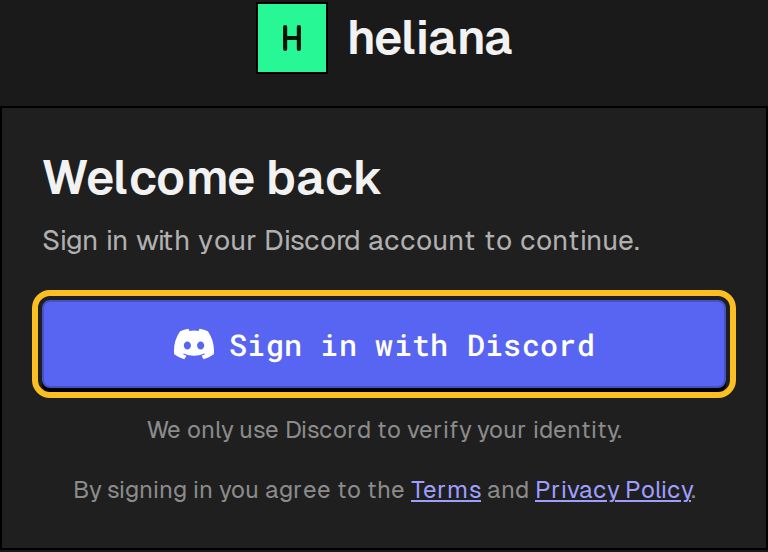
Section titled “Sign in with Discord”heliana uses Discord for authentication. Open the heliana app and click Sign in with Discord.
heliana uses Discord only to verify your identity — nothing is posted to your Discord account.
Create your organization
Section titled “Create your organization”After signing in you land on the Home screen, a search for organizations by their full name or URL slug. To create an organization, click Create organization on the Organizations page. The Create your organization screen opens.
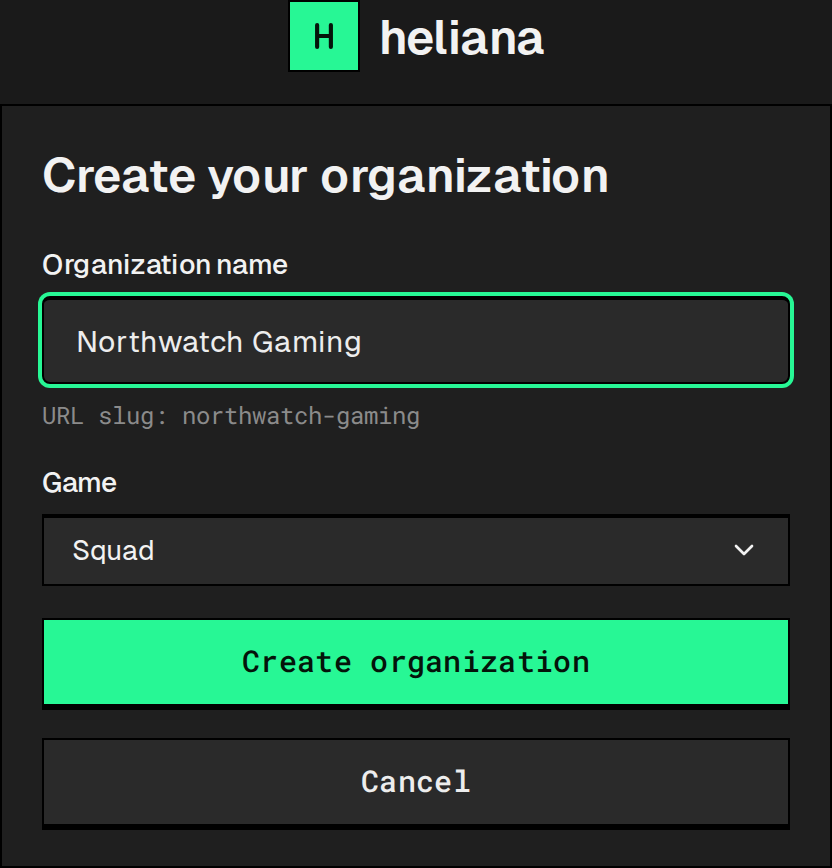
Fill in the Organization name field. For example: My Community. As you type, a URL slug appears beneath the field (for example URL slug: my-community) — this becomes part of your organization’s web address, so pick a name you’re happy to see there.
Pick a Game. heliana supports Squad only, so this is the only choice on the list.
If your account already used its trial on another organization, the screen says Trial is available for your first organization only; see Plans and limits.
Click Create organization. If successful, you land on the Add your first server screen. If you already used the trial on an earlier organization, you land on Billing instead, where you subscribe before adding a server.
The organization model
Section titled “The organization model”Everything in heliana is scoped to an organization: your servers, player records, ban lists, automations, and team members all live under one org. You are the Owner of your new organization, which means you start with full permissions over everything.
To add teammates later, see Invite admins. Fine-grained roles are covered in Roles & permissions.
Already have an invite?
Section titled “Already have an invite?”If a teammate invited your account, open Organizations in the sidebar instead of following these steps, and accept the invite in the Invitations card. It attaches your Discord account to their existing organization, skipping org creation entirely. The teammate finds you by your Discord username, so sign in once first.