Ban a player
You ban a player by running the Ban player automation against them. It’s a manual automation — heliana seeds it in every new Squad organization, switched On, so it’s in the player’s Actions menu from the first minute. The ban’s duration and scope (all servers, or one server) are set in the automation’s own configuration; the only thing you type when you run it is the reason.
Check the Ban player automation
Section titled “Check the Ban player automation”In Automations, find Ban player. The Enabled column shows it as On. To change how long the ban lasts or whether it hits all servers or one, edit its ban action. See below for handling more than one length.
Ban a player
Section titled “Ban a player”- Open the player, from Players, and pick Ban player in the Actions menu.
- Fill in reason — why you’re banning them (required) — and click Run. If the automation is scoped to a single server and heliana doesn’t already know which one, a Server picker appears first — choose the server.
The ban is recorded right away. You don’t need an RCON kick action to remove the player from the server: heliana enforces bans on its own, on a roughly 60-second tick, and kicks a banned player who is still connected without any automation action for it.
The Actions menu only lists manual automations you can run that apply to a player. If you don’t see Ban player, check it’s enabled and that your role can run it.
Handle more than one ban length or scope
Section titled “Handle more than one ban length or scope”A single Ban player automation carries one duration and one scope. If you regularly hand out, say, a 24-hour ban and a permanent one, add a second ban automation:
- In Automations, create a manual automation with a ban action.
- Name it (e.g. Ban player — 24h), and edit its ban action’s duration and scope.
- Enable it.
Both now show up in the player Actions menu, and you pick the right one at ban time.
Ban straight from the Bans tab
Section titled “Ban straight from the Bans tab”You don’t have to go through an automation. The Bans tab of the player page has a Ban player button of its own, and it writes the same kind of record:
- On the player’s Bans tab, click Ban player and fill in Reason — required; the server refuses a ban without one.
- Optionally set Expires at. Leave it empty for a permanent ban, and a time in the past is refused with Pick a time in the future.
- A Scope field lets you pick which server the ban covers. What it offers — and whether it appears at all — follows your own access:
- Your role reaches the whole organization: the options open with All servers, and that’s what’s selected until you narrow it. If there’s no inventory to offer — you’re missing
server:read, or the organization has no servers yet — the field doesn’t appear and the ban is org-wide. - Your access is limited to named servers: All servers isn’t offered at all, because a ban wider than your own access would be refused anyway. A single server in reach is selected for you; with several, none is, and Confirm stays disabled until you pick one, a banner above it saying Pick a server — your access does not cover the whole organization. You get that same banner instead of the field when the inventory can’t be read, so a narrowed ban never quietly widens to the organization.
- Your role reaches the whole organization: the options open with All servers, and that’s what’s selected until you narrow it. If there’s no inventory to offer — you’re missing
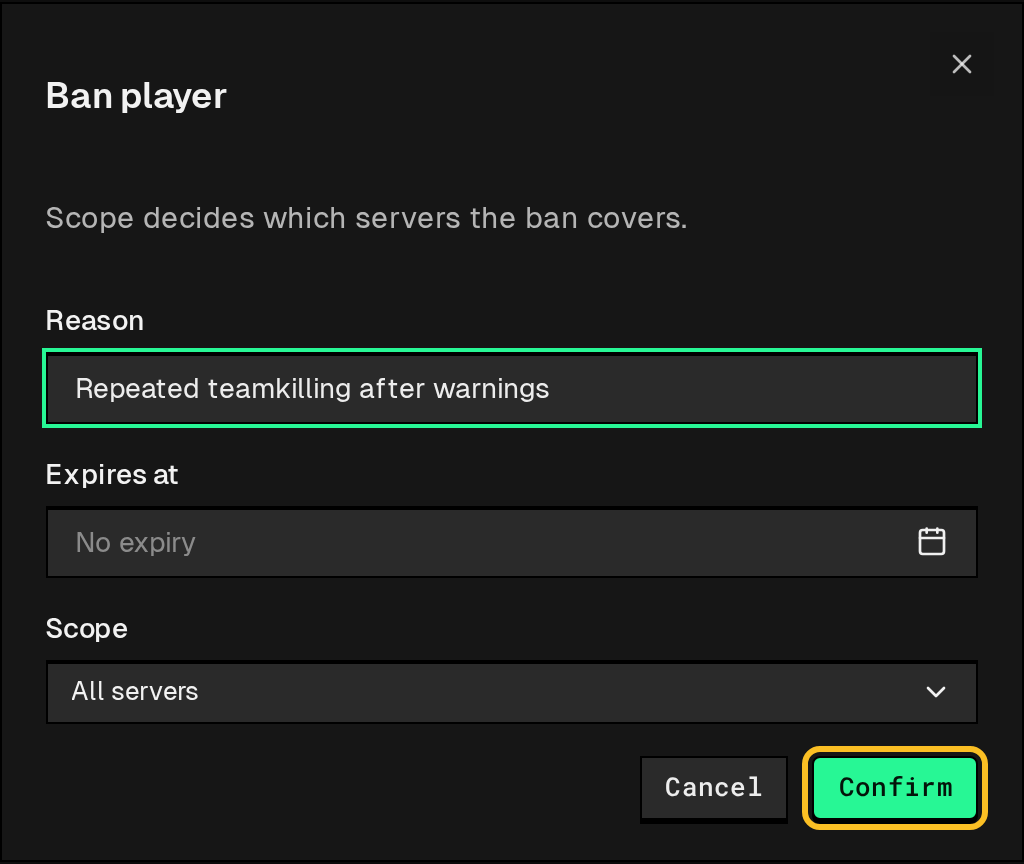
The button only appears if your role holds Bans: Create (ban:create).
Ban an identity that has no player yet
Section titled “Ban an identity that has no player yet”The organization’s Bans screen lists every decision the organization has made, not just one player’s. Its header carries its own Ban button, and it opens the same dialog as the player page’s Bans tab, except you type the identity by hand instead of it being picked up from an open player:
- On Bans, click Ban.
- Pick the Platform and type the External ID — the same pair a ban source or a server connection would report for this person.
- Fill in Reason, optionally set Expires at and the server Scope, same as banning from a player’s own Bans tab.
Use this when you know the platform and ID of the account you want banned — from a report, a source entry, or an RCON log — and heliana hasn’t seen that person as a player yet. Banning from an open player’s Bans tab remains the way to go when you already have them open.
View and revoke a ban
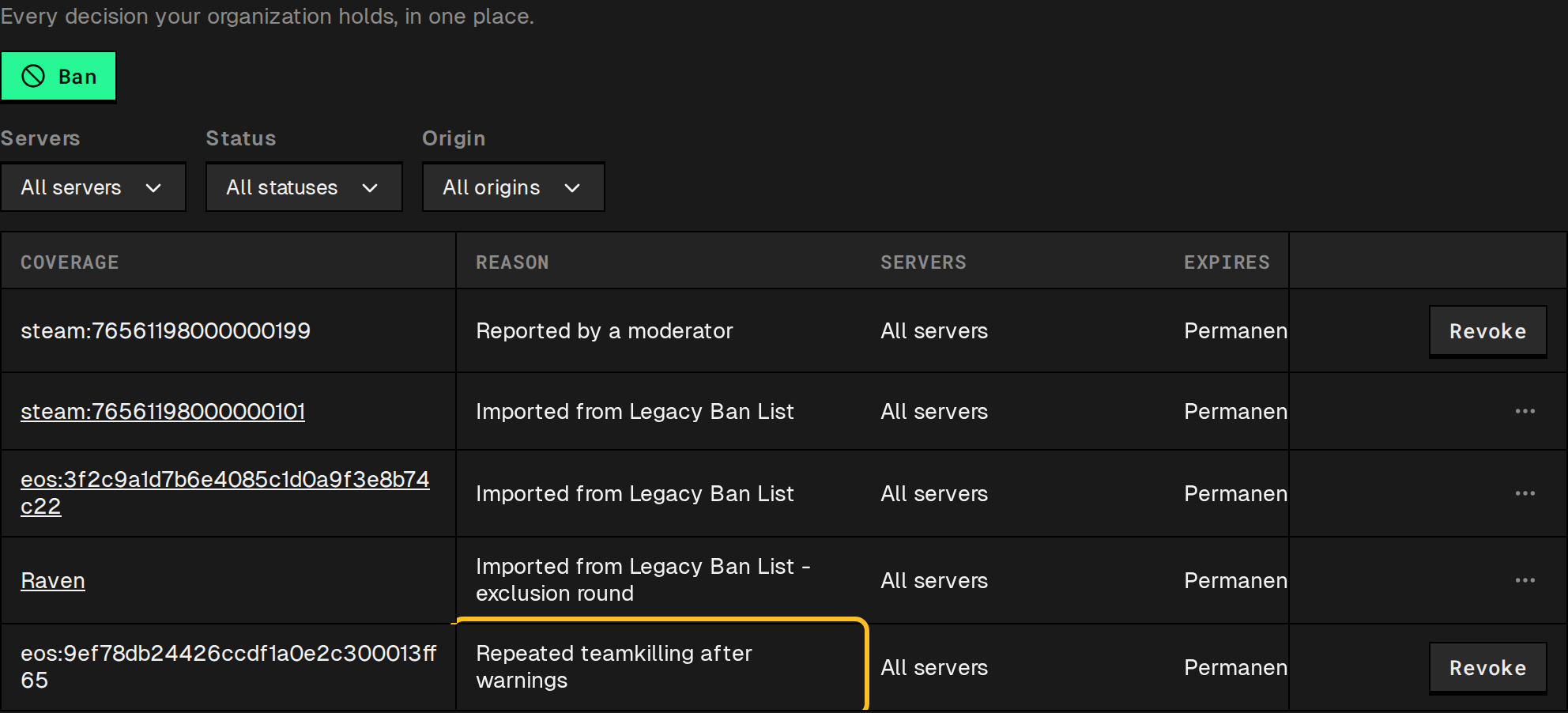
Section titled “View and revoke a ban”Bans live in the player’s Bans tab, and every one of them also shows up on the organization’s Bans screen — the one place that lists decisions regardless of whether they’re tied to a player yet. The screen adds an Origin column (Manual, or the name of the ban source it came from, linking to that source) and lets you filter by it, by status, or by server; otherwise a row there behaves the same as a row in the player’s tab, described below.
- The player’s Bans tab lists bans in a table that shows 50 bans at a time with a Load more button under it, with a column each:
- Status — Active, Expired, Revoked, or Removed from source (an imported entry its source has stopped carrying). An Excluded line joins it when an exception is suppressing the ban: the exception’s own scope (All servers, or a count of servers), then its reason.
- Reason — the reason, or No reason recorded.
- Scope — the duration (until a date, or permanent), the server scope (All servers, or a count of servers), and the date it was recorded.
- Each row offers at most one control, and which one depends on whose decision the ban is:
- Revoke — on a ban of your own that is still on record. Confirm in the Revoke this ban? dialog; a reason is recorded either way, defaulting to Revoked by operator.
- Exclude / Remove exclusion — on an imported ban. You can’t revoke somebody else’s entry; you suppress it locally instead. See Manage exceptions.
- Nothing at all — on a ban you already revoked. There is nothing left to change.
Revoking needs the Bans: Delete permission (ban:delete). The record stays in the player’s history, marked Revoked.
Who can do what
Section titled “Who can do what”| Action | What it needs |
|---|---|
| Run the Ban player automation | Permission to run that automation (granted per-automation on the Roles screen) |
| Ban from the Bans tab | Bans: Create (ban:create) |
| Revoke a ban | Bans: Delete (ban:delete) |
| Exclude a player from another community’s ban | Ban lists: Manage (banList:manage) |
See Roles & permissions to set who holds these.